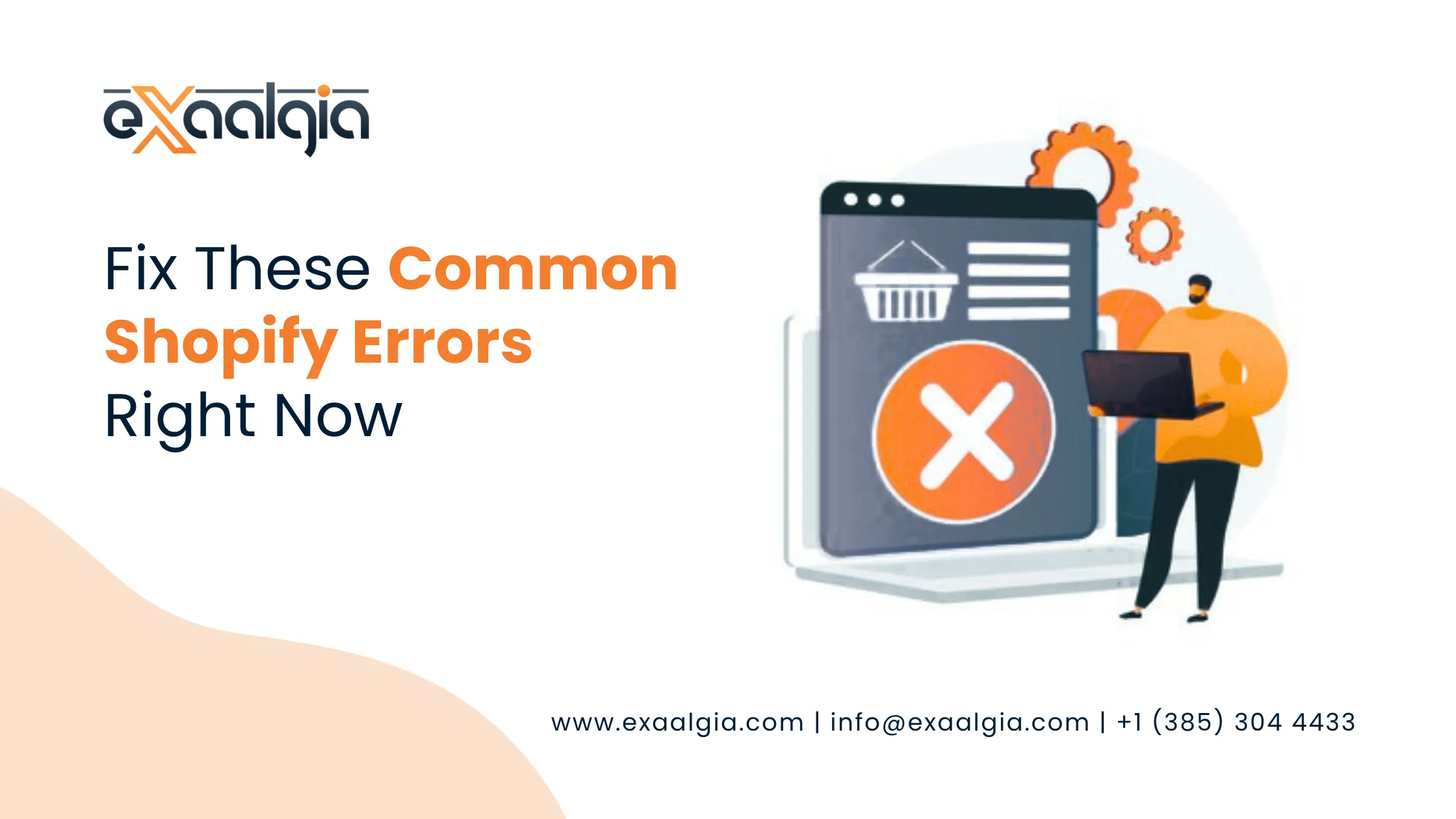
Your Shopify store operates continuously throughout the day but one unhandled mistake will convert a customer who intends to buy into a bounced session which results in lost revenue. The knowledge of common Shopify errors remains essential for both independent business owners and agency developers who work on multiple client projects.
The guide presents different error types which users will face in their work from standard Shopify 404 errors through Liquid syntax errors to payment processing problems and 500 server outages. Our certified Shopify experts at Exaalgia are available to handle complex issues which need professional help or require immediate attention.
“Every unresolved Shopify error is a micro leak in your revenue pipeline. A 2-second delay in page load alone can cost you 7% of conversions, imagine what a broken checkout does.” — Shopify Performance Research
All Common Shopify Errors - Quick Reference
| # | Error | Symptom | Main Cause | Difficulty |
| 01 | 500 Internal Server Error | Admin or storefront crashes | Theme code / app conflict | Medium |
| 02 | Slow Store Speed | Pages load in 5+ seconds | Large images, too many apps | Easy |
| 03 | 404 Page Not Found | Broken links on storefront | Deleted products, changed URLs | Easy |
| 04 | Checkout / Payment Error | Payments fail at checkout | Gateway config, app scripts | Medium |
| 05 | CSV Product Import Error | Import fails or data is wrong | Wrong headers, bad formatting | Easy |
| 06 | Liquid Syntax Error | Broken layout, blank sections | Typos in template code | Medium |
| 07 | Admin Login Problem | Can’t access Shopify admin | Browser cache, network issue | Easy |
Error 1 - 500 Internal Server Error When Accessing the Admin Dashboard
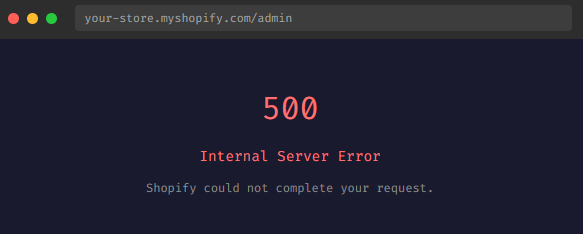
The Shopify 500 Internal Server Error presents itself as the most dangerous error which users must face. This system presents an error message that provides no explanation except to state that something has failed. It can affect your administrative dashboard, your inventory pages, your order views and your theme saving process.
Why Does This Happen?
- Newly installed or updated application conflicts with your Shopify store
- Theme file was modified with defective code
- Third-party application embed block has been set up incorrectly
- Shopify itself is experiencing a platform outage (rare)
Step-by-Step Fix –
- Check shopifystatus.com then, when Shopify goes down, wait.
- Online Store → Themes → Duplicate before touching anything.
- Uninstall the latest app that has been installed/updated in your Apps.
- In case the error still occurs, temporarily use the default Dawn theme of Shopify.
- With recent changes history, undo any recent changes made to the theme editor.
- Send a screenshot and a note on what you were doing to contact Shopify support.
Important: A 500 error doesn’t always mean your whole store is down. Sometimes it only affects specific admin pages. Always test your live storefront from a different browser or device to check the full extent of the problem.
Error 2 - Slow Store Speed - The Error No One Complains About (But Everyone Leaves Because Of)
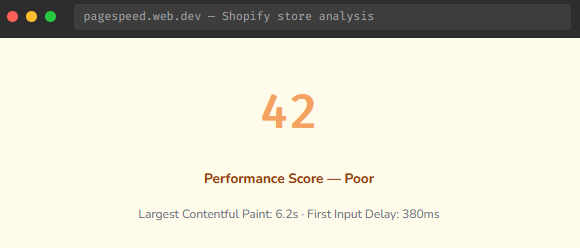
Slow store speed is unique among common Shopify errors because it does not produce an error code while visitors leave the website without sending you their complaints. Research shows that each second of page loading delay creates a substantial decrease in conversion rates.
The most common reasons for a slow Shopify store –
- Posting images of products above 1-2 MB without compression.
- Adding excessive apps – all of them introduce JavaScript to all pages.
- With a clunky, bloated feature theme.
- Using too many outside sources to load fonts and scripts.
- Failure to use lazy loading of images on Shopify.
Speeding up your Shopify store –
- Use TinyPNG or Squoosh to compress all product images prior to uploading – target less than 200 KB.
- Check the apps you have installed and uninstall those you are not using.
- Change to a lightweight and performance-oriented theme such as Dawn or Sense.
- Image lazy loading Use lazy-loading that is built in to Shopify by adding loading “lazy” to image tags within the theme code.
- Periodically (monthly) run a Google PageSpeed Insights audit and monitor your score.
Our team covers Shopify store speed as part of comprehensive Shopify optimization services. A performance audit often reveals 5–10 quick wins that can push a store from a 40 to an 85+ pagespeed score.
Error 3 - 404 Page Not Found - When Links Break and Customers Bounce
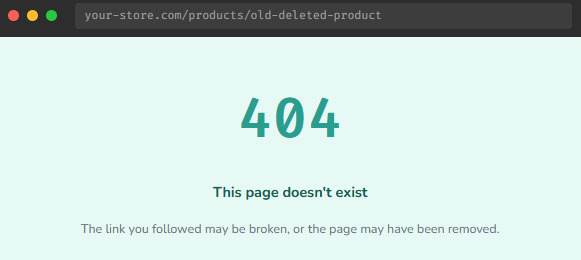
Shopify 404 error represents the most frequent storefront error that merchants face. It occurs when a site visitor attempts to access a URL which has been removed from the website because the product was deleted and the collection was renamed and the external link became obsolete. These 404 errors not only create user frustration but also result in a gradual decline of your SEO rankings.
Top Shopify 404 error causes –
- Removing a product or collection without redirects.
- Modifying a handle in the product or page settings.
- Broken links in your navigation bar or blog articles.
- Bad links to other websites or social media bio links.
- Anchor tags in page content typed in manually with typos.
Fix Shopify 404 Errors –
- Login to your Google Search Console, view Coverage excluded and export all your 404 URLs
- In the Shopify Admin go to the Online store menu URL redirects
- Click ‘Create URL redirect’ and enter the old broken link and the new live URL,
- Apply a 301 redirect to give your new URL authority,
- Audit your navigation menus and footer links monthly to eliminate dead links.
Never redirect all 404 errors to your homepage as a shortcut, it confuses both users and search engines. Always redirect to the most relevant live page instead. — Exaalgia Shopify Team
Error 4 - Shopify Checkout & Payment Errors, Where Your Revenue Disappears
Checkout errors represent the most expensive mistake which Shopify users make. Most customers who experience payment failures, do not attempt to complete their transactions but instead abandon the process and never come back. The problems can arise from your payment gateway settings, your shipping zone configuration, the presence of conflicting application scripts, or the banking system of the customer.
Common Checkout Error Types -
| Error | Likely Cause | Fix |
| Card Declined | Wrong CVV, expired card, bank block | Show retry prompt; suggest alternative payment |
| Gateway Timeout | Payment provider API is slow or down | Check payment provider’s status page |
| SSL / Security Error | Mixed HTTP/HTTPS content, expired cert | Force HTTPS in Shopify settings |
| No Shipping Option | Customer’s region not in shipping zones | Add missing regions to shipping settings |
| Script Conflict | Two apps modifying checkout simultaneously | Disable app checkout extensions one by one |
Fixing the step-by-step checkout –
- Try your complete checkout on desktop and mobile (using a real card which you then refund) or via Shopify’s bogus gateway.
- Go to Settings Payments and ensure your payment gateway is enabled.
- Review Settings Shipping and Delivery – is every shipping zone included to where you are trying to ship?
- Deactivate any checkout app extensions one by one and determine if any of the scripts interfere with the flow.
- Enforce HTTPS everywhere on the website. Online store domains enable SSL.
Error 5 - CSV Product Import Errors, When Your Bulk Upload Fails Silently
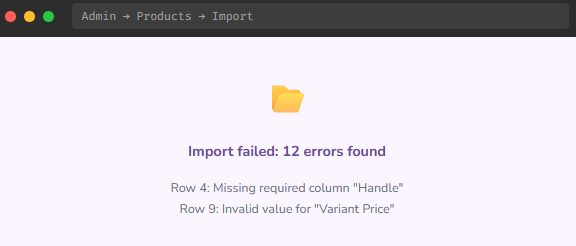
Businesses can easily handle their entire product inventory through CSV based product imports which become their most effective solution until the system fails. This system shows errors when businesses use Shopify CSV files because users make formatting errors within their spreadsheet documents.
The most common CSV Import errors –
- Lacking necessary column heads, particularly, Handle, Title and Body (HTML).
- Separating with semicolons or tabs, rather than commas.
- Cells of variants that are not filled in or have currency symbols.
- Product handle special characters (use lower case letters and numbers only, hyphens are allowed)
- Storing the file not in UTF-8 CSV format.
Fixing CSV Import errors –
- Use the official sample CSV template of Shopify in the Admin menu, Products, Import as your starting point.
- Open the CSV file in Google Sheets (not Excel) to prevent problems with encoding.
- Make sure all the necessary headers are there and they are correctly spelled as per Shopify.
- Make sure that all Variant Price cells only have numbers in them no $ signs, no text.
- To save, select File →Download \[Comma-separated values (.csv)].
- Check preview of imports with Shopify to highlight mistakes row by row before making a commitment.
Managing large product catalogs across multiple stores? Our Shopify store management services include bulk product setup, CSV import assistance, and ongoing catalog maintenance.
Error 6 - Liquid Syntax Errors - When Your Theme Code Breaks the Layout
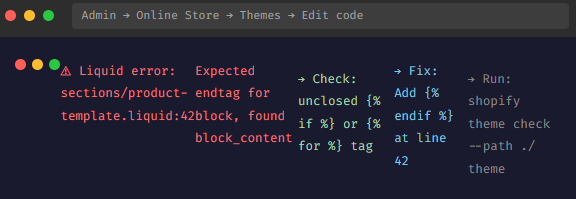
Shopify uses Liquid as its templating language. It will display blank sections together with missing content blocks and a complete layout failure when one of these three errors occurs which include a single spelling mistake. This missing closing tag and the incorrect delimiter need to be fixed before the system can function properly.
The 4 Most common Liquid Pitfalls –
- Unclosed logic tags – Every {% if %} needs {% endif %}; every {% for %} needs {% endfor %}
- Confused delimiters – There are two types of delimiters that are mixed up: logic and output delimiters.
- Missing asset files – The template refers to a CSS/JS file that has been removed out of the theme.
- Exceeded memory limit – Too many nested loops or huge unfiltered collections.
How to correct Liquid Errors –
- Do not make any changes to your live theme, copy it first through Online Store → Themes → Duplicate.
- Open the theme code editor and locate the line number and file in the error log.
- Enclose the broken code with wrap suspect sections in {% comment %}{% endcomment%} to isolate the broken code.
- Check Shopify Theme Check to drive syntax errors to live before it becomes live with the store.
- Follow all theme changes on GitHub – version control implies that all errors can be undone.
Liquid errors can be tricky to diagnose and even trickier to fix without breaking other parts of the theme. If you’re not comfortable with template code, our Shopify development experts at Exaalgia handle theme debugging and custom development safely and efficiently.
Error 7 - Shopify Admin Login Problems - When You Can't Get Into Your Own Store
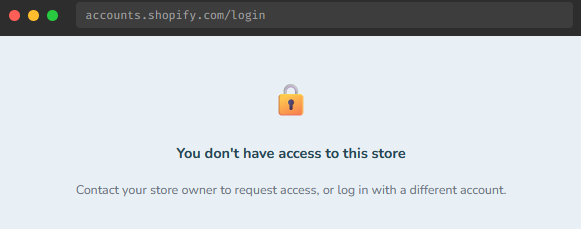
You will experience stress from being locked out of your Shopify admin because most cases stem from local problems with your browser and network and device instead of actual store issues. Only rarely is it caused by a Shopify side outage or an account access change.
Fix Shopify Login Problems –
- Empty your browser cache and cookies, restart again.
- Use another browser ( Chrome vs Firefox vs Safari) to eliminate browser-related problems.
- Turn off any VPN or proxy that you have on, these may prevent Shopify authentication.
- Visit check shopifystatus.com to determine whether there is a platform-wide issue of logging in.
- Browse the Forgot Password flow even when you believe you know your password – a reset can frequently fix a token-based log-in error.
- In case you are a staff account, request the store owner to verify that you have not changed your permissions.
Enable Two-Factor Authentication (2FA) on your Shopify account now, before you get locked out. It adds security and also gives you a reliable recovery path if login issues arise in the future.
Don’t Let Small Errors Kill Your Shopify Sales
Whether you face a Shopify 500 error in your admin system or a 404 error that harms your SEO or a checkout problem that results in lost sales or a slow online store that drives customers away every error on this list has a solution. The key is to proceed with quick actions while following step-by-step procedures and maintaining theme backup files before making any changes to your active theme.
Our Shopify experts at Exaalgia handle errors which require advanced technical expertise to resolve. Our team provides complete diagnostics and digital marketing solutions which help protect Shopify stores from future problems. Your store deserves to work perfectly, let’s make sure it does.
Still Struggling With Shopify Errors?
Let our certified Shopify experts diagnose and fix your store issues, fast. From broken checkouts to performance audits, we handle it all so you can focus on growing your business.